What is in here
What an owner is
You own the companies. Everyone else works inside one.
An owner sits above the whole thing. You can:
- Make new companies.
- Switch between the companies you own.
- Do everything a manager can do, inside any of them.
- See recordings, incidents and everybody's hours.
- Go live to all your companies at once.
Owners are not invited by a company. We make your account for you and email you.
You then make your own companies and invite your own managers.
Owner or co-owner?
A co-owner shares everything you own. It is nearly the same job. Three things are yours alone.
| Can they… | Owner | Co-owner |
|---|---|---|
| Make a new company | Yes | No |
| Delete a company | Yes | No |
| Add another co-owner | Yes | No |
| Everything else | Yes | Yes |
Your first sign-in
Your email has a link in it. That link is the whole setup.
- Open the email we sent you.
- Tap the link. It opens a page in your browser.
- Type your name and pick a password. A phone number is asked for, but you can skip it.
- You are in. That page signs you straight into the computer console.
If it has been sitting a while, the link may not work any more.
Go to admin.hydroxapp.com, click Forgot password? and get a fresh code.
Get the app too
Search the App Store for Job Stream. Sign in with the same email and password you just picked. You do not need an invite code — you already have an account.
Set up your first company
Four steps and you are running.
- Make the company. Give it a name and the email of its first manager.
- The manager gets an invite. They set up their own account.
- They add the sites and invite the supervisors and crew.
- You watch it work.
You can put your own email as the first manager. Then you set the company up yourself.
Make a company on the phone
- Tap the company bar at the top of your home screen.
- Tap + NEW COMPANY.
- Type the company name.
- Type the first manager's email.
- Tap Create.
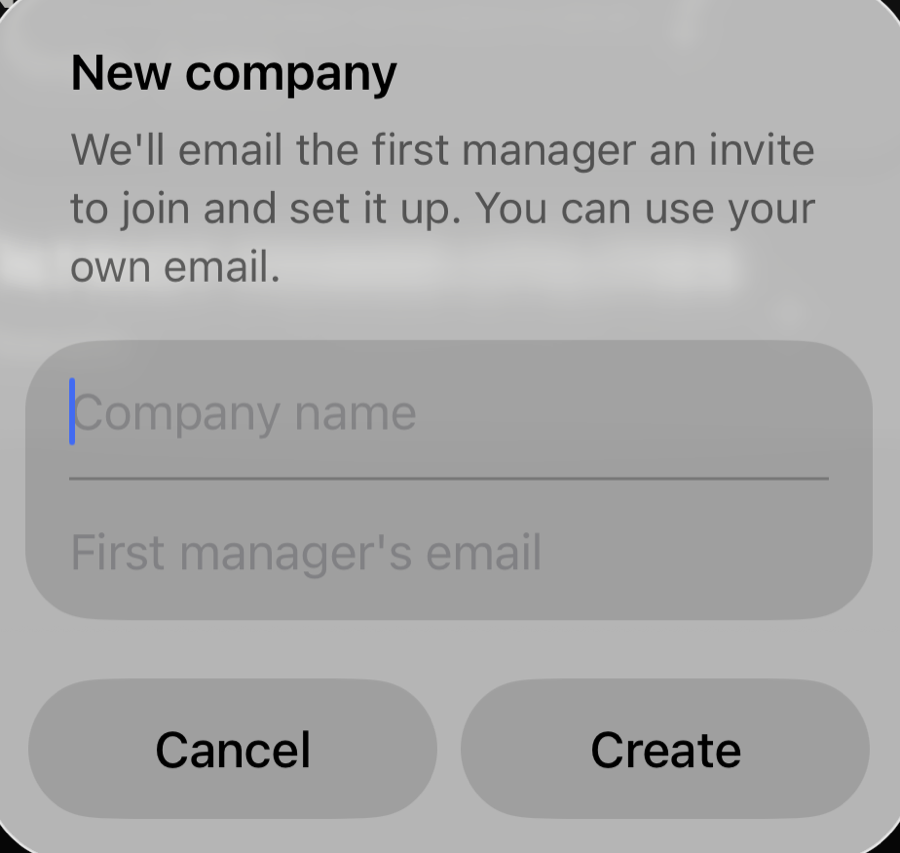
Your home screen will say CREATE YOUR FIRST COMPANY with a + NEW COMPANY button. That is the right screen. Nothing is broken.
Your home screen
Everything a manager has, plus four more.
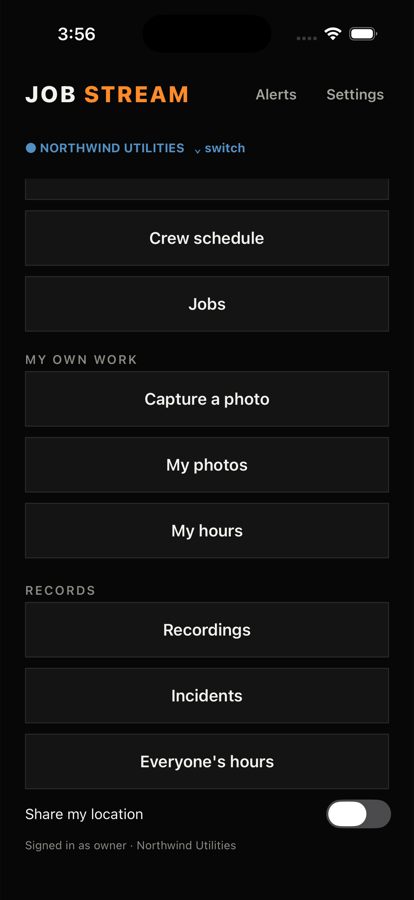
You get the manager's buttons — Go Live, Watch live, Crew map, Request a crew to go live, Jobs, Capture a photo, My photos, My hours. Part 3 covers all of those.
The four that are yours
| Team | Walk down from a company, to a team, to one person. |
| Recordings | Saved video from past streams. |
| Incidents | Things that went wrong. You can resolve or reopen them. |
| Everyone's hours | Hours for the whole company, not just yours. |
Switch between companies
The bar at the top of the home screen.
The bar shows the company you are looking at right now. Tap it to switch.
Every screen underneath follows. Jobs, the map, hours — all of it is for the company in that bar.
The screens look identical for every company. The bar is the only thing that tells you which one you are in.
Look at it before you approve work or invite somebody.
Your companies list
Tapping the bar shows YOUR COMPANIES. From here you can:
- Tap one to switch to it.
- Tap + NEW COMPANY to make another.
- Tap ● GO LIVE TO ALL COMPANIES if you own two or more.
Go live to all your companies
One stream. Every company you own.
Use it for a safety notice, a weather call, or anything everybody needs to hear at once.
- Tap the company bar at the top of the home screen.
- Tap ● GO LIVE TO ALL COMPANIES.
- Read the warning and tap Go live.
- Talk. Tap stop when you are finished.
Every manager and supervisor across all your companies gets an alert and can watch.
It is not recorded. Nothing is saved.
It counts no hours.
It has no incident button.
Say what you need to say. It will not be there later.
This button only shows up if you own two or more companies. One company does not need a broadcast.
Recordings, incidents and hours
The Records group at the bottom of your home screen.
Recordings
Every live stream is saved on its own. Nobody presses record.
Tap a row to play it. The list under it shows who was on that stream.
A brand new recording takes about 3 minutes to build. An empty list right after a stream almost always means "still uploading".
Incidents
Tap one to read it. You can mark it resolved, or re-open one that was closed too early.
The full claim package — the video, the photos, the location trail, all on one printable page — is on the computer. See Part 1.
Nobody can delete video or photos an open incident points at. Not even you. That is on purpose.
To release it: resolve the incident first, then delete it.
Everyone's hours
Hours for the whole company. A check mark means the hours were inside a site's circle. A warning mark means somewhere else.
To save them to a spreadsheet, use the computer. Part 1 covers it.
Add your people
Two ways in, depending on who they are.
| You want to add a… | Do this |
|---|---|
| Manager, supervisor or crew | Invite them into a company. They get an invite code. |
| Co-owner | Invite them as a co-owner. They get a set-password link. |
Both are done on the computer, in the Members tab. Part 1 walks through it.
A co-owner gets every company you own. All of them, at once. Not one.
You can take it back later. Use Manage on their row, then Remove as owner.
What a co-owner cannot do
They cannot make a company, delete one, or add another co-owner. Everything else, they can.
Phone or computer?
Some things are computer only. Here is the split.
| Job | Phone | Computer |
|---|---|---|
| Watch live video | Yes | Yes, many at once |
| See the crew map | Yes | Yes |
| Make a job, add crew | Yes | Yes |
| Approve finished work | Yes | Yes |
| Make a new company | Yes | Yes |
| Go live to all companies | Yes | No |
| Make a site and drop its pin | No | Yes |
| Invite people | No | Yes |
| Build a claim package | No | Yes |
| Save hours to a spreadsheet | No | Yes |
| Set your logo and colour | No | Yes |
| Delete anything | No | Yes |
Delete has no undo. A phone is used with one hand, in the sun, with gloves on. We keep the buttons that cannot be taken back on the big screen.
When something looks wrong
Five things owners hit.
My home screen has almost no buttons
You have no company selected. Tap the bar at the top and pick one, or make one.
It says "NO COMPANY SHARED WITH YOU"
You are a co-owner, not a full owner. A full owner has to share a company with you.
A new company is not in my list
Close the app all the way and open it again. The list is rebuilt when you sign in.
Go live to all companies is missing
You own one company. The button shows at two or more.
My first manager never got their invite
Check their junk mail. Then check the spelling. If it bounced once, we stop sending to that address to protect our mail — fix the address and send it again.
I need to change something I cannot see on the phone
Sign in at admin.hydroxapp.com on a computer. Part 1 covers everything there.
Need a hand?
Two ways to get help.
- Ask your supervisor or manager first. Most questions are about your own company's sites and jobs. They set those up, so they know the answer.
- Email support@hydroxapp.com. Tell us your name, your company, and what screen you were on. A picture of the screen helps a lot.
The pictures in these guides come from a practice company. The people and jobs in them are made up. The maps and some addresses show real places.