What is in here
What this app does
It shows the office what you are working on.
You do four things with this app.
- You take the jobs you are given.
- You show your work on live video.
- You take photos of what you did.
- You send the job in when it is done.
That is it. The app keeps track of your hours on its own. You do not punch a clock.
The rest of this manual is for the office. You do not need it.
Get started
You need your invite email. Have it open on your phone.
Get the app
- Open the App Store on your iPhone.
- Search for Job Stream.
- Tap Get. The app is free.
Make your account
You cannot sign up on your own. Your company has to invite you first. Their email gives you a code.
- Open the app.
- Tap Create an account.
- Type your full name.
- Type your email. It has to be the same email your invite came to.
- Type your invite code. Copy it from the email. Do not type it by hand.
- Skip the phone box if you want. It is only used to text you a sign-in code.
- Pick a password. At least 8 letters or numbers.
- Tap Create Account.
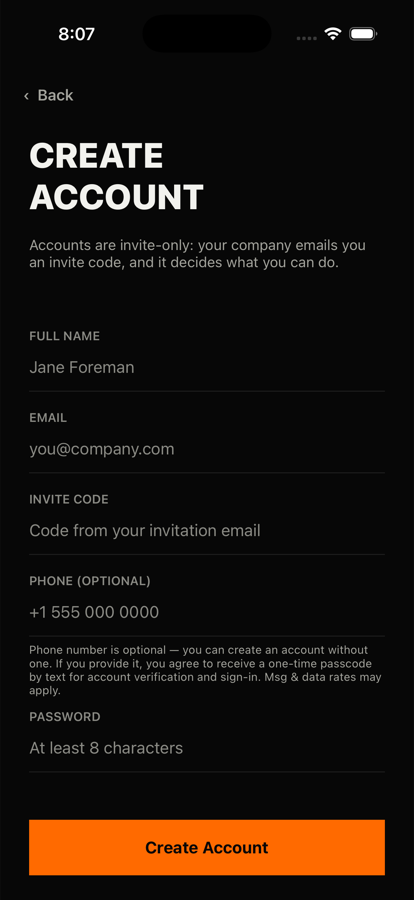
Wrong email. If you use a different email than the one on the invite, it will not work. Use the one they sent it to.
Typed code. Codes are long. Copy and paste it.
Say yes to these three
The phone will ask you some questions the first time. Say yes to all three.
| It asks about | Say | Why |
|---|---|---|
| Notifications | Allow | This is how your boss reaches you. |
| Location | Always | So the app can log where you worked, with the screen off. |
| Camera and microphone | OK | So you can go live and take photos. |
"While Using the App" keeps working too. The app carries on logging with the screen off and the phone in your pocket. A blue mark at the top of the screen shows when it is doing that.
"Always" is simply the one that keeps working without you thinking about it.
To change it later: phone Settings → Job Stream → Location.
Your home screen
Learn these buttons once and you are done.
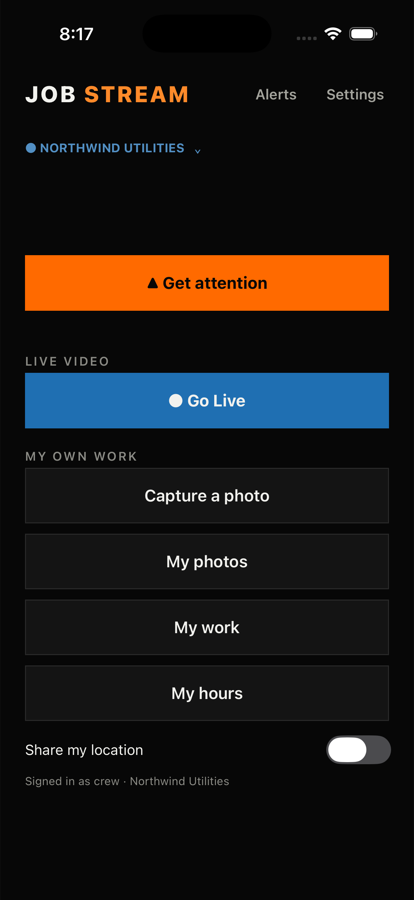
| Button | What it does |
|---|---|
| ▲ Get attention | Raise your hand. Tells your bosses you need somebody. |
| ● Go Live | Start showing video from your camera. |
| Capture a photo | Take a picture of the work. |
| Inventory Cam | Log a pole. Scan its tag and take its pictures. |
| Inventory | See every pole your company logged. |
| My photos | See the pictures you took. |
| My work | Your jobs. Accept one here. This is where you spend your time. |
| My hours | How many hours you have put in. |
| Share my location | A switch. On means the office can see your dot on a map. |
At the very top right there are two small buttons. The bell is Alerts. The gear is Settings.
You cannot delete anything. You cannot break anything. Tap around and look.
Take a job
This is the main thing you do.
Your boss puts you on a job. Your phone buzzes. The job shows up under My work.
- Tap My work.
- Tap the job. It says Tap to accept next to it.
- Read the job. The name, the note, and a map of where it is.
- Tap Accept this job.
Then you can skip the steps. Tap the banner and go live. That starts the job for you. You do not have to tap Accept.
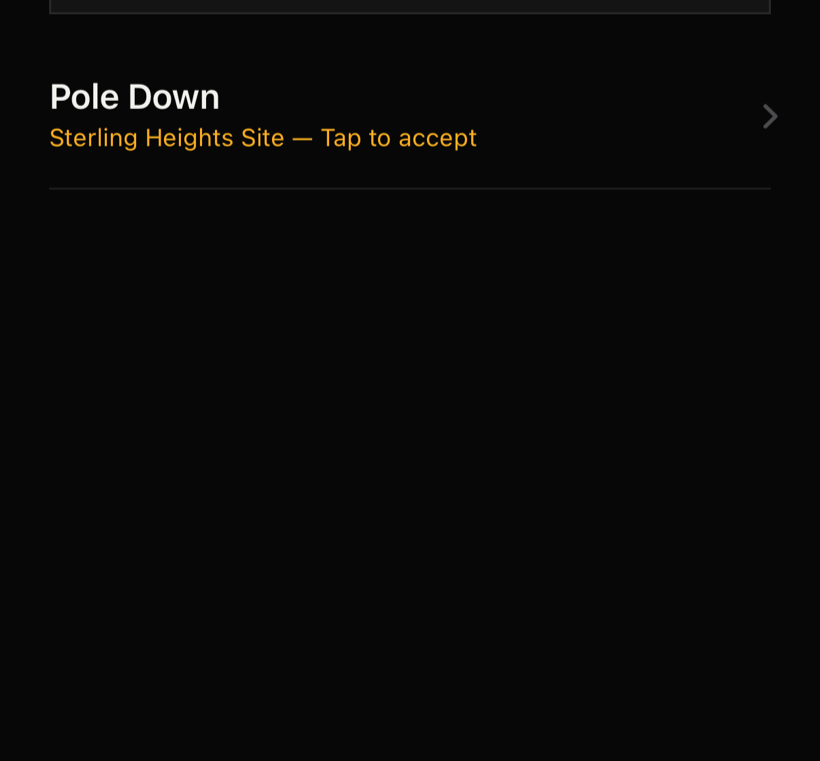
What those words mean
| It says | It means |
|---|---|
| Tap to accept | New. You have not started it. |
| Working now | Your clock is running. |
| Paused | You stopped. Your clock is not running. |
| Sent in — waiting for review | You sent it. Your boss has not looked yet. |
| Approved | Done. Your boss said it is good. |
The job screen has a map. Tap it and your phone opens Maps with the route.
One job at a time
Your clock runs on one job. Never two.
Say you are on job A, and you start job B. The app pauses job A for you. It asks first, in a box that names your other job.
The box says You can only be on one job at a time. Then it tells you that starting this one pauses the other and stops its clock.
| Button | What it does |
|---|---|
| Cancel | Nothing changes. You stay on the first job. |
| Pause it & start this | Pauses the first job. Starts this one. |
The first job is only paused. It is not gone and it is not finished.
- It stays on your My work list.
- The hours you put in are kept.
- Open it and tap Start work again any time.
You lose nothing but the clock time while it sits paused.
While you are working
The app runs in the background. Put your phone away.
When you accept a job, two things happen on their own.
- Your clock starts.
- Your location is shared with your company.
You do not have to keep the app open. Lock your phone and work.
Take a break
- Open the job under My work.
- Tap Pause work.
Your clock stops. Your location stops being shared.
Get back to work
Open the job. Tap Start work again. That is it.
You can pause and start again as many times as you need. Across days too. A job that runs three days is normal.
The app will not do it for you. If you drive home with the clock running, the hours look wrong and your boss has to ask you about it.
Make it a habit. Pause when you get in the truck.
If the app asks "Still on it?"
Sometimes the app checks on you. Your phone buzzes and asks Still on this job?
Tap the alert and the job opens. A line at the top asks the question. Two buttons sit under it: Still on it and Pause now. While the question is up, those two take the place of Pause work.
It asks for one of two reasons.
- You got to the site, and then your phone went more than 1000 feet away while your clock was still running.
- Your clock has been running for 12 hours.
The first one only happens if you reached the site first. Go straight home without ever arriving and it will not ask.
It is not an accusation. People forget to pause. That is why we built it.
| Button | What it does |
|---|---|
| Still on it | Says yes, you are working. The question goes away and your clock keeps running. |
| Pause now | Stops your clock, the same as Pause work. |
You can also ignore it. Nothing bad happens to your clock. The app never stops it for you.
Why it can ask again
Tapping Still on it answers one question, one time. It can come back. Here is when.
- You pause the job, then start it again.
- It asked because you were away. You come back, then go away again.
- Your clock is still running 12 hours later.
- The other question comes up. There are two, and each is asked on its own.
Say it asked because your phone was far away. You drive back to the site. The question stays on the screen.
Tap Still on it to clear it. Pausing the job clears it too.
Why the location switch is gone
While a job is running, the Share my location switch is replaced by a line that says so. This is on purpose.
Your location is part of the job record. Pause the job and the switch comes back.
Go live
Show your boss what you are looking at.
- Tap ● Go Live on your home screen.
- Pick your site from the list.
- Wait a second. Your camera comes on. You are live.
- Point the camera at the work. Talk. They can hear you.
- Tap Stop when you are finished.
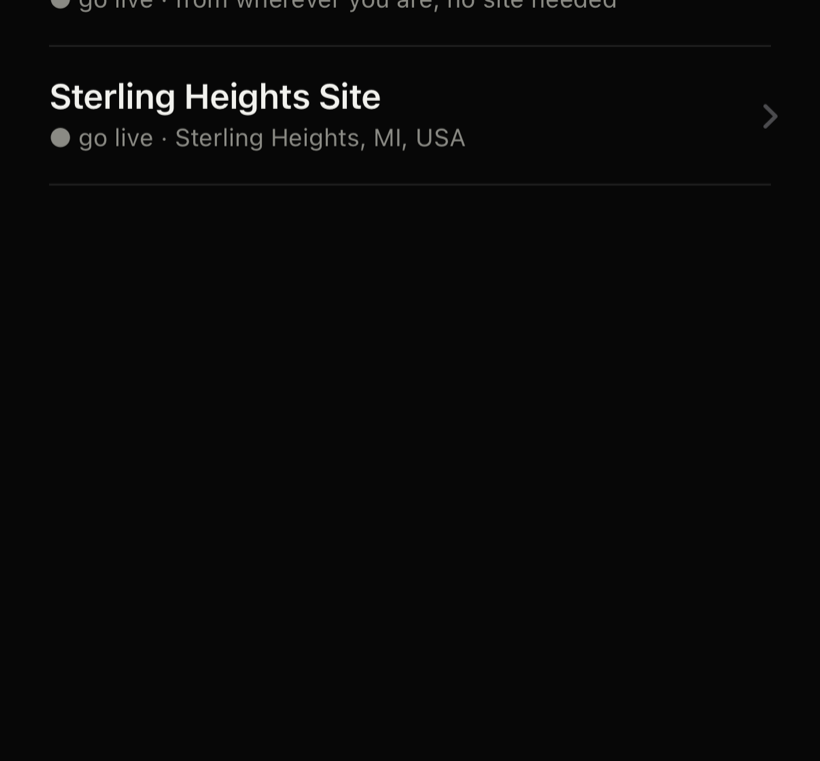
Not at one of the sites?
Pick the first row. It says No site — where I am now. Use it for storm work, helping another crew, or any spot that is not set up yet.
Your boss asked you to go live
Your phone buzzes and shows a green banner. Tap the banner. You go straight live. No picking a site.
Are you on a job at that site that you have not started? Going live starts it. Your clock starts too. A paused job stays paused. Tap Start work again when you are back at work.
You do not press record. It happens on its own. Your boss can watch it later.
Two buttons on the live screen
| Button | What it does |
|---|---|
| The shutter | Takes a full-size photo without stopping the video. |
| ⚑ Incident | Marks something going wrong. Tap once when it starts. Tap again when it is over. |
A fall. Damage. A near miss. Tapping ⚑ saves that piece of video so it cannot go missing.
You are not in trouble for tapping it. It is a bookmark, not a blame button. If you are not sure, tap it.
Get their attention
Need somebody and cannot get them on the phone?
- Tap ▲ Get attention at the top of your home screen.
- Pick a reason from the short list.
- Add a note if you want. You can skip it.
Your boss gets an alert on their phone. If it cannot reach their phone, the managers get it. So do the main company's supervisors and the supervisors on your own team. A supervisor from another subcontractor does not.
The same people see an orange banner in Job Stream. It stays on their screen until one of them looks.
When somebody sees it, a green line shows up on your home screen with their name on it. Now you know help is coming.
Job Stream tells your company. It does not call an ambulance or the fire department.
If somebody is hurt, call 911 first. Then use this.
Take photos
Every photo is stamped with the time and the place.
- Tap Capture a photo on your home screen.
- Take the picture.
- Pick which site it is from.
- Pick which job it is for.
The photo goes to the office right away. You can see all of yours under My photos.
Photos are what settle arguments about work six months later. Before, during and after. They cost nothing.
Add pictures already on your phone
Took pictures with your phone's own camera? You can still put them on the job. Each one keeps its own time and place.
- Open the job under My work.
- Tap Choose from Photos. It is right under Add a photo to this job.
- The first time, your phone asks to see your photos. Tap Allow Full Access. It is the surest way to keep each picture's place. The other answers still work.
- Pick up to 10 pictures.
They go up one at a time. At the end the screen says how many went in, like 5 added · 3 with place.
| You see | What to do |
|---|---|
| When was this taken? | That picture has no time saved in it. Pick the day and time, then tap Use this time. Not sure? Tap Leave it out. Then it is not added. |
| Upload failed | You are out of signal. Your pictures are still there. Tap Try again when you have a bar. |
A picture with no place gets the site's pin. The pin shows where the site is, not the spot where the picture was taken. The button is only on a job that is not done or archived.
Log a pole
Scan the pole's tag. Then take its pictures.
Each pole has a tag with a code on it. Inventory Cam reads the code and saves where you are.
- Tap Inventory Cam on your home screen.
- Point at the pole's tag. Once the code is read, it stays put.
- Take a picture of the tag. Tap the round button.
- Add a note if you want. A word like "leaning" is enough. You can skip it.
- Tap Save. The pole's page opens.
To read a different tag, tap Scan again.
The pole's page
The page shows the pole's code. Three boxes sit side by side: Tag, Before and After. A small map is under them. A box with a + has no picture yet. Tap it to take that picture. The filled-in button is your next step.
| Button | What it does |
|---|---|
| Before picture | Take it before you start work. |
| After picture | Take it when the work is done. Where you stand is saved as the pole's spot. |
| Pictures around the pole | Extra pictures of what is near. A house. A street sign. |
| Pole details | Fill in facts about the pole. See below. |
| Done with this pole | Go back to scanning. You are ready for the next pole. |
You do not need every picture. Take the ones your boss asks for.
Not happy with a picture? Tap Retake under it.
Come back for the after picture
The work can take days. That is fine. Tap Done with this pole and leave.
When the work is done, scan the tag again. The page says After picture still needed. Tap After picture. Anyone in your company can take it. It does not have to be you.
A pole that is already logged
Scan its tag. The page shows what we have. It says who updated it last, and when.
Just looking? Go back. Nothing changes.
Did new work? Tap Update this pole. Take a new tag picture first. Then take new pictures. The old pictures are kept.
Pole details
These are facts about the pole. Fill in what you know. Nothing is required.
- Tap Pole details on the pole's page.
- Fill in what you know. Type in a box, or tap a choice. Tap a choice again to clear it.
- Tap Save details.
You can save the pole's owner, a work order number, the work done, the material, the height, the class, the year on the stamp, the hole depth, what is on the pole, its condition and the nearest address.
The pole number comes from the tag. You cannot change it here.
Look up a pole
You can see every pole your company logged. You do not have to stand at the pole.
- Tap Inventory on your home screen. It is under Inventory Cam.
- Find the pole. Look on the map, or type its code in the search box. Tap Waiting to see only poles that need an after picture.
- Tap the pole in the list. You see its pictures and its details. Tap a picture to see it big.
You can only look here. To add a picture or change a detail, scan the pole's tag.
Keep going. Your scans, pictures and details wait on your phone. They send by themselves when you have signal. If you sign out first, the phone warns you. They wait until you sign in again.
Every scan of a tag is saved, even with no picture. It saves your name, the time and where you were. It also saves facts from your phone, like its model and which way it pointed. Your supervisors and managers can see this. Each change to a pole's details is saved with your name too.
Send the job in
The last step. Do it while you are still standing there.
When the work is done, your boss needs to see it. Go live and walk them through it.
- Open the job under My work.
- Tap the go live button on the job screen.
- Walk the camera over the finished work. Say what you did.
- Stop the stream.
- Tap Send in for review.
The job now says Sent in — waiting for review. Your clock stops. You are free.
If you send the job in with no video, your boss has nothing to look at. They will send it back and you will have to go again.
If it comes back
Your phone buzzes. The job screen shows an orange line that starts with Sent back: and then your boss's note.
Read the note. Go fix that thing. Then send it in again the same way.
The video from the round they rejected is removed. Shoot a new one when you are done.
Your hours
Tap My hours on the home screen.
The top of the screen tells you where you stand, in plain words.
The first line says LAST 7 DAYS. So it is one week, not your whole pay period.
The two numbers
The app keeps two numbers for you.
- What you logged. How long your job clock ran.
- What GPS backs up. How much of that time we can show on a map.
They should match. When they do not, somebody has to sort it out before payday.
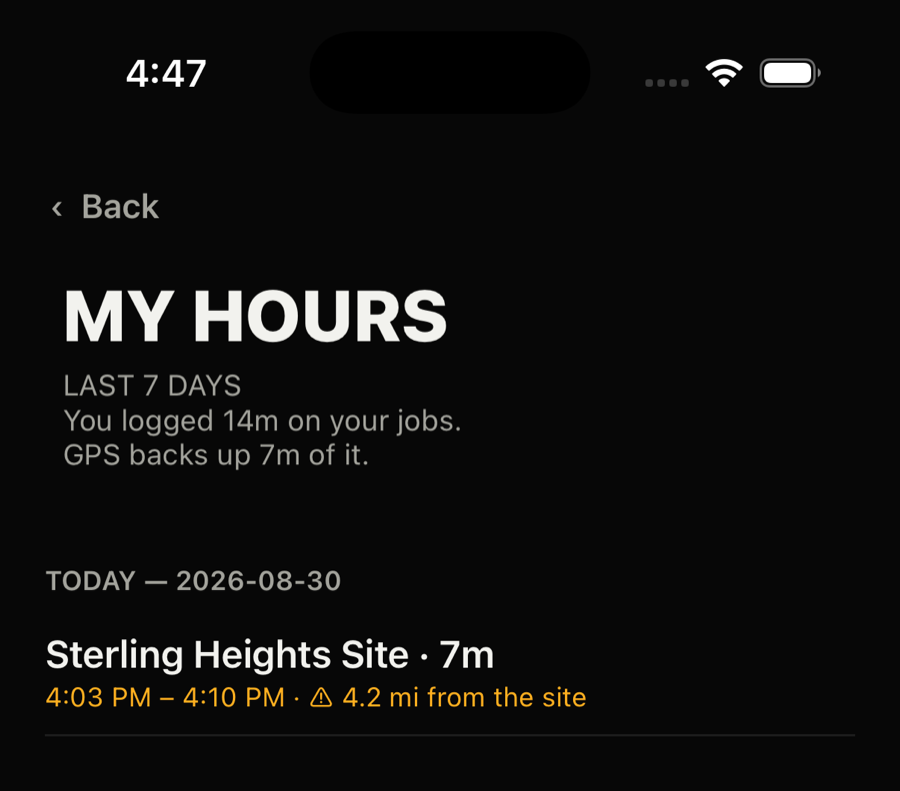
What each line means
| The screen says | It means | What to do |
|---|---|---|
| You logged 8h 12m on your jobs. | Your clock ran that long this week. | Nothing. |
| GPS backs up all of it. | The map agrees with your clock. | Nothing. This is the good one. |
| GPS backs up 2h 10m of it. | Part of your time is on the map. | Read the next line. |
| 6h 2m is not backed up — ask your supervisor before payday. | That much of your time has no map behind it. | Tell your supervisor today. |
| You never went live from a site, so nothing backs this up — ask your supervisor before payday. | You logged hours, but none of them are on the map. | Tell your supervisor today. |
| Your clock is still running, so this is still going up. | You are on a job right now. | Nothing. Look again after you pause. |
| Nothing logged yet. Accept a job and your hours start here. | You have not worked a job this week. | Nothing. |
| Couldn't check it against GPS — pull down to retry. | Your hours loaded. The map part did not. | Drag the screen down again. |
When the block turns amber
Those lines are normally grey. Grey is fine.
If something needs looking at, the whole block turns amber together. Not one line. All of it, including the LAST 7 DAYS heading.
That happens for one of two reasons. No GPS backs up your time at all, or some of it is missing. Both end the same way: ask your supervisor before payday.
Do it the day you see it. It is much harder to sort out later.
How to keep your hours backed up
Go live while you are on the job. That is what puts your time on the map.
Turn on Share my location on the home screen. You can leave the app and lock the phone. It keeps working in your pocket.
The list under the lines
Each row is one block of live time.
The top line is the site and how long. The line under it says one of these.
| It says | It means |
|---|---|
| on site ✓ | You were inside the site's circle. |
| ⚠ 400 ft from the site | You were outside the circle. This one is amber. |
| site not on the map yet | Nobody has pinned that site. |
| no site | You went live without picking a site. |
Only the amber one is a warning. The last two are not.
Being off the site is not a mark against you. Driving between two sites looks like that.
An empty list says No verified hours yet. That means nothing you did is on the map.
This screen is not your pay slip. It is the record your boss checks it against.
The app never changes your hours for you. A person decides.
If the app says some of your hours are not backed up, tell your supervisor before payday. Do not wait to be asked.
Alerts
The bell at the top right.
Everything the app has sent you is in there. A new job. A job sent back. A request to go live.
If you missed a buzz, look in the bell.
Alerts that keep buzzing
Some alerts repeat until you answer them. That is on purpose. They are the ones somebody needs you for right now.
To stop one, open it and tap Acknowledge. It stops within a minute.
Settings and signing out
The gear at the top right.
| Row | What it does |
|---|---|
| Account | Change your name, your phone or your password. |
| Alerts | Same as the bell. |
| Privacy Policy | What we do with your information. |
| Terms of Use | The rules. |
| Delete Account | Removes your account for good. |
| Sign Out | Signs you off this phone. |
Lock the app with your face
Phones get handed around and left in trucks. You can lock the app so only your face opens it.
Turn it on under Account. It is off until you turn it on.
Signing out stops your location sharing and your job clock. If you are on a job, pause the job instead.
Your Apple Watch
Only if you have one. You do not need one.
The watch does three things.
- It shows how many of your crew are live.
- You can raise your hand from your wrist.
- You can turn location sharing on and off.
Live video does not play on a watch. That needs the phone.
When something is not working
The six things that go wrong most.
It says "You're not on a company yet"
Your invite has not gone through. Or you signed up with a different email than the one on the invite. Ask your boss which email they used.
My hours are missing
Check three things, in this order.
- Did you accept the job? Your clock only starts when you accept it. Going live from your boss's banner for that site accepts it too. No job, no hours.
- Did you go live from the site? That is what puts your time on the map. Work a whole day without going live and your hours show with nothing backing them up.
- Is Share my location on? It is on the home screen.
If your hours are there but say they are not backed up, that is a different thing. See Your hours.
Go Live will not start
Check you have signal. Video needs a real connection. One bar will not do it.
If you have signal, close the app all the way and open it again.
The camera is black
Go to phone Settings → Job Stream and switch Camera on.
My phone never buzzes
Go to phone Settings → Job Stream → Notifications and switch Allow Notifications on.
The app is slow or stuck
Close it all the way and open it again. Swipe up from the bottom and flick the app off the screen. That fixes most of it.
Tell your supervisor. Take a picture of the screen and show them. That saves a lot of back and forth.
Need a hand?
Two ways to get help.
- Ask your supervisor or manager first. Most questions are about your own company's sites and jobs. They set those up, so they know the answer.
- Email support@hydroxapp.com. Tell us your name, your company, and what screen you were on. A picture of the screen helps a lot.
The pictures in these guides come from a practice company. The people and jobs in them are made up. The maps and some addresses show real places.