What is in here
What this part is for
Running your crew from your phone.
You can do most of your job from the phone. Watch live video. See where everyone is. Make jobs. Approve finished work.
The computer side does more, and it does it on a bigger screen. Use the phone when you are out. Use the computer when you are in.
Managers and supervisors. Your two home screens look exactly the same.
You see the same people, photos, live streams and recordings. Jobs are different. A supervisor sees only their own work, unless they have Manager powers. See Supervisor or manager?
Get set up
Setting up your phone is the same as it is for crew. Get the app. Make your account with your invite code. Say yes to notifications, location and camera.
All of that is in Part 2, pages 2 and 3. Do that first, then come back here.
Your home screen
Three groups of buttons.
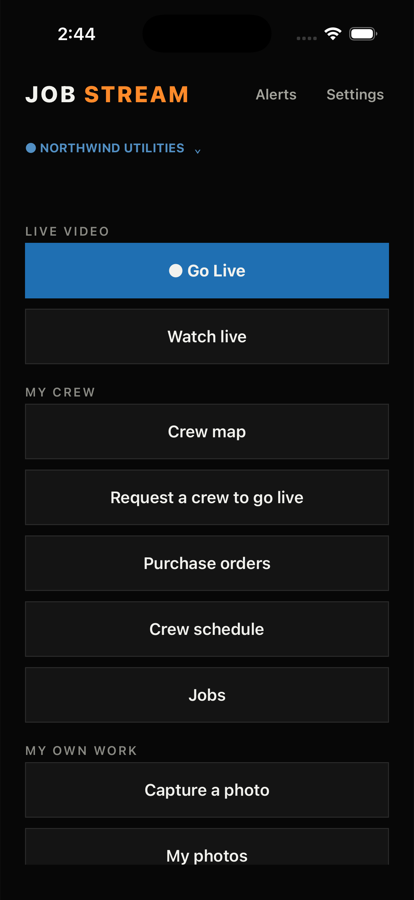
Live video
| ● Go Live | Stream from your own camera. |
| Watch live | Watch your crew. The number beside it is how many are on right now. |
My crew
| Crew map | Everyone's spot on a map. |
| Request a crew to go live | Ask somebody to turn their camera on. |
| Jobs | Make jobs. Put crew on them. Approve finished work. |
My own work
| Capture a photo | Take a stamped photo yourself. |
| My photos | Photos you took. |
| My hours | Your own hours. |
There is also a Share my location switch. You show on the map too when it is on.
Watch your crew
Tap Watch live.
You get a list of everyone streaming right now. Tap one to watch.
You can hear them. They can hear you if you hold the talk button.
The buttons on the live screen
| Button | What it does |
|---|---|
| ⚑ Incident | Marks this moment as an incident. Tap once to start, again to end. |
| The shutter | Takes a full-size photo out of the live video. |
| ◎ Follow crew | Keeps the map on them as they move. |
It does not save a copy somewhere else. It locks the real one so nothing can remove it while the incident is open.
You build the claim package on the computer. See Part 1.
Ask somebody to go live
You do not have to wait for them.
- Tap Request a crew to go live.
- Pick a site, or pick one person.
- Send it.
Their phone buzzes and shows a green banner. One tap puts them live.
Did you pick a site? If they are on a job there they have not started, going live starts it.
Pick a person when you want that person.
Pick a site when you just need eyes there. Everyone on that site gets asked. The first one to go live answers it for the rest.
Somebody raised their hand
This is the alert that matters most.
Crew have a Get attention button. When they press it, an orange banner shows up at the top of your home screen with their name on it.
- Tap the banner. It opens their stream if they have one.
- That also tells them you saw it. A green line appears on their phone with your name.
- Then do something about it. Call them, or send help.
It stays until a supervisor or manager taps it. That is on purpose.
Until somebody taps it, the crew member has no idea anyone saw them.
The crew map
Where everybody is.
Each dot is one person. Square pins are your sites. The circle around each pin is that site's on-site area.
Tap a dot to see who it is. From there you can watch them, ask them to go live, or get directions to them.
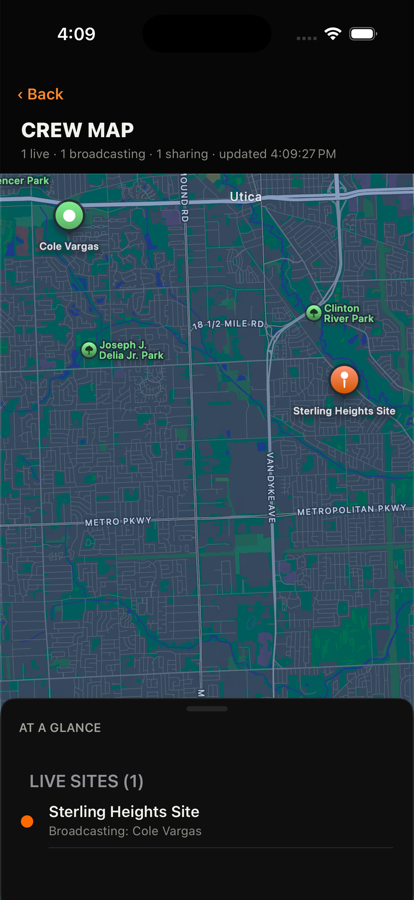
They have to switch on Share my location on their own phone. It starts off.
It switches itself on when they accept a job.
Jobs
Make work, hand it out, sign it off.
Make a job
- Tap Jobs.
- Tap the plus button at the top.
- Pick which site the job is at.
- Type the job name. Add a note if it helps.
- Tap Create.
If you have no sites yet, the app tells you so. Sites are made on the computer. See Part 1.
Put people on it
- Tap the job in the list.
- Tap Crew on this job.
- Pick a person, or a whole team.
Their phone buzzes right away. The job shows up under their My work.
Add pictures to a job
Tap the job in the list. Add a photo to this job takes a new one. Choose from Photos adds pictures already on your phone, with their own time and place. It works the same as it does for crew. See Part 2, Take photos.
The words on a job row
| It says | It means |
|---|---|
| Open | Handed out. Nobody has finished it. |
| Working now | Somebody is on it right now. |
| Paused | They stopped for now. |
| Sent in — waiting for review | Waiting on you. |
| Approved | Finished and signed off. |
Quick actions
Swipe a job row left. You get Done and Archive.
Archiving hides an old job. It deletes nothing. Jobs do not archive themselves. To put many old jobs away at once, use Auto Archive on the computer.
Approve finished work
A crew member sends the job in. You say yes or no.
- Tap Jobs, then tap the job. It says Sent in — waiting for review.
- Tap Review the work.
- Watch the video they sent. Look at the photos.
- Pick one:
| Button | What happens |
|---|---|
| Approve — job done | The job closes. They get a note saying it is approved. |
| Send back to fix | You write what is wrong. You pick who fixes it. Their phone buzzes and shows your note. |
Your note is the only thing they see. "Not good enough" sends somebody back to a site without telling them what to do.
"The seal on the north duct is not finished" gets it fixed in one trip.
The photos stay. Anything tied to an incident stays. Only the proof video from the round you turned down goes, because they are going to shoot a new one.
No video came through
A stream's video file takes about 3 minutes to build after the stream ends. An empty list right after a job comes in usually means "still uploading".
Wait a few minutes and look again before you send it back.
Choose which alerts reach you
Settings, then Notification settings.
You can mute four kinds of alert.
| Alert | Fires when |
|---|---|
| Crew live & off-site | A crew member starts streaming, or streams away from the site. |
| Get-attention | A crew member asks for eyes on their stream. |
| Go-live answered | Somebody you asked actually goes live. |
| Location & photos | A crew member starts sharing their spot, or adds a photo. |
A muted alert still shows up in your bell. It just does not buzz.
That is a crew member asking for help. If you mute it, you find out when you next open the app.
Inventory Cam
Log a pole. Scan its tag, then take its pictures.
It works the same for you as for your crew. The steps are in Part 2, under Log a pole: the tag, the before and after pictures, pictures around the pole, and Pole details.
Your crew have Inventory Cam too. They can scan a pole, take its pictures and fill in its details. They have Inventory too. There they can look at every pole, but they cannot see the list of scans and cannot change anything.
Inventory
This is every pole your company logged, on a map and in a list.
- Tap Records, then Inventory.
- Find the pole. Search for a code, or tap Waiting to see only poles that need an after picture. The map has Map and Satellite.
- Tap the pole in the list. It opens.
You can also tap a dot on the map. Its card has Directions, Share location and Open pole.
An open pole shows its pictures for each visit, then its details, then Scans of this tag. Tap a picture to see it big.
| Button | What it does |
|---|---|
| Edit details | Change the pole's details, like the material and the height. |
| Edit note | Change the note on one visit. Empty the box to clear it. |
To add pictures, scan the pole's tag with Inventory Cam. To delete a scan or a pole, use the computer. See Inventory in Part 1.
Supervisor or manager?
Same screens. Same lists. A manager can do a few more things.
| Supervisor | Manager | |
|---|---|---|
| Sees on the map | Everyone | Everyone |
| Sees jobs, job hours and preplanned POs | Their own work | Everyone's |
| Sees photos from | Everyone | Everyone |
| Sees live streams from | Everyone | Everyone |
| Sees recordings from | Everyone | Everyone |
| Makes sites and jobs | Yes | Yes |
| Approves finished work | Yes | Yes |
| Invites new people | Crew and supervisors | Anyone |
| Deletes an incident | With Manager powers | Yes, once resolved |
A supervisor's own work is: jobs given to their company, jobs their people are on or worked on, jobs they made, and the job at a site a manager sent their people to, for one day.
A manager can give a supervisor Manager powers on the computer. Then that supervisor sees every job, like a manager. Part 1 shows how.
Everyone in the company shows up in the people list. A supervisor can do the same things for anyone's crew. Only a manager can change another supervisor or a manager.
When something looks wrong
Four quick answers.
Watch live says nobody is on
Nobody is streaming, or you have no signal. Pull the list down to refresh it.
A crew member has no dot
They have not switched on Share my location, or their phone's location is set to While Using instead of Always.
The job will not let me approve it
A job under review leaves only through a verdict. Open the job and tap Review the work. Marking it done from the list will not work.
Somebody says they never got the job
Check they are actually on it. Open the job, tap Crew on this job, and look at the list. Adding somebody is what sends the alert.
Need a hand?
Two ways to get help.
- Ask your supervisor or manager first. Most questions are about your own company's sites and jobs. They set those up, so they know the answer.
- Email support@hydroxapp.com. Tell us your name, your company, and what screen you were on. A picture of the screen helps a lot.
The pictures in these guides come from a practice company. The people and jobs in them are made up. The maps and some addresses show real places.